iPhone Battery Draining Fast? 12 Fixes That Actually Help
If your iPhone battery is draining fast, losing charge overnight or dropping several percent while it sits in your pocket, you are not imagining it. An IPhone battery draining fast is one of the most searched iPhone problems, and it usually has a specific cause: an app working too hard in the background, a setting that keeps the phone busy, a weak signal that forces the radios to work harder, or a battery that is simply wearing out.
The fixes below start with diagnosis, because the best fix depends on the cause. First you will check the battery’s health and find out exactly which apps are using the most power. Then you will apply the changes that make a real, measurable difference, in the order that helps most people. None of them require apps, accessories or a repair visit.
In this guide you will learn:
- Step 1: Check Your Battery Health First
- Step 2: Find Which Apps Are Draining the Battery
- Fix 1: Turn Off Background App Refresh for Heavy Apps
- Fix 2: Limit Location Services
- Fix 3: Tame the Screen: Brightness, Auto-Lock and Always On
- Fix 4: Weak Signal and 5G Drain More Than You Think
- Fix 5: Cut Notifications That Wake the Screen
- Fix 6: iPhone Battery Draining Fast After an iOS Update
- When the Battery Itself Needs Replacing
- Frequently Asked Questions
Step 1: Check Your Battery Health First
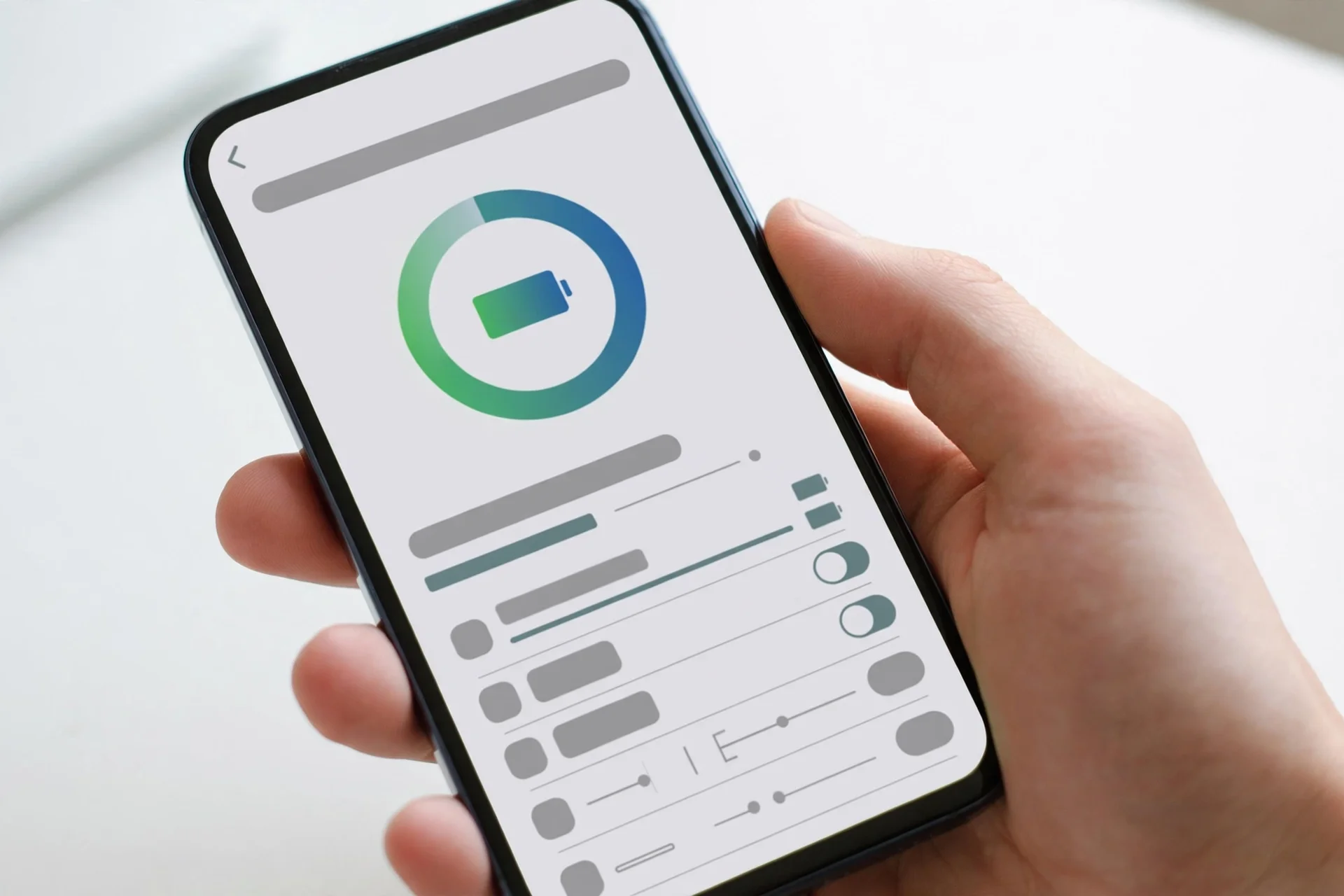
Before changing any setting, look at the battery itself. Open Settings, Battery, Battery Health and Charging (on newer iOS versions it is under Settings, Battery, Battery Health). The “Maximum Capacity” number shows how much charge the battery can still hold compared to when it was new. At 100% to 90%, the battery is healthy. Between 89% and 80%, wear is noticeable but normal for a phone used for two or more years.
Below 80%, the battery is considered degraded: Apple designs iPhone batteries to retain up to 80% of their original capacity after 500 complete charge cycles, and below that point unexpected shutdowns and fast drain become common. If your phone also shows a “Service” message or a note that performance management was applied, no software fix will fully solve the drain; a battery replacement is the real solution, covered in the last section.
Step 2: Find Which Apps Are Draining the Battery
iOS tells you exactly where the charge went. Open Settings, Battery and scroll down to the usage list, which shows each app’s share of battery use over the last 24 hours and the last 10 days. Tap an app to see how much of that use was on screen and how much was in the background.
Background activity is the number that matters. A social media, video or navigation app with high background time is working while you are not using it: refreshing feeds, tracking location or syncing content. If one app stands out far above the rest, it is your main suspect. The fixes in the next sections are mostly about cutting that background work down.
| What the battery screen shows | What it usually means | Best fix |
|---|---|---|
| One app with very high background activity | The app refreshes, syncs or tracks location constantly | Fix 1 and Fix 2 |
| “Home and Lock Screen” near the top | Notifications wake the screen all day | Fix 5 |
| High use with “No Mobile Coverage” or weak signal notes | The phone keeps boosting radio power to hold a signal | Fix 4 |
| Drain started right after an iOS update | Indexing and recalibration running in the background | Wait 48 hours, then Fix 6 |
| Maximum Capacity below 80% | The battery is worn out | Battery replacement |
Fix 1: Turn Off Background App Refresh for Heavy Apps

Background App Refresh lets apps update their content while you are not using them, and it is one of the largest steady drains on most iPhones. Open Settings, General, Background App Refresh and turn it off for the apps that appeared at the top of your battery list, especially social media, news and shopping apps. They will still work normally when you open them; they just stop working while you are not looking.
You can also switch the whole feature to “Wi-Fi only” instead of “Wi-Fi and Mobile Data”, which cuts the drain when you are out, without changing anything at home.
Fix 2: Limit Location Services
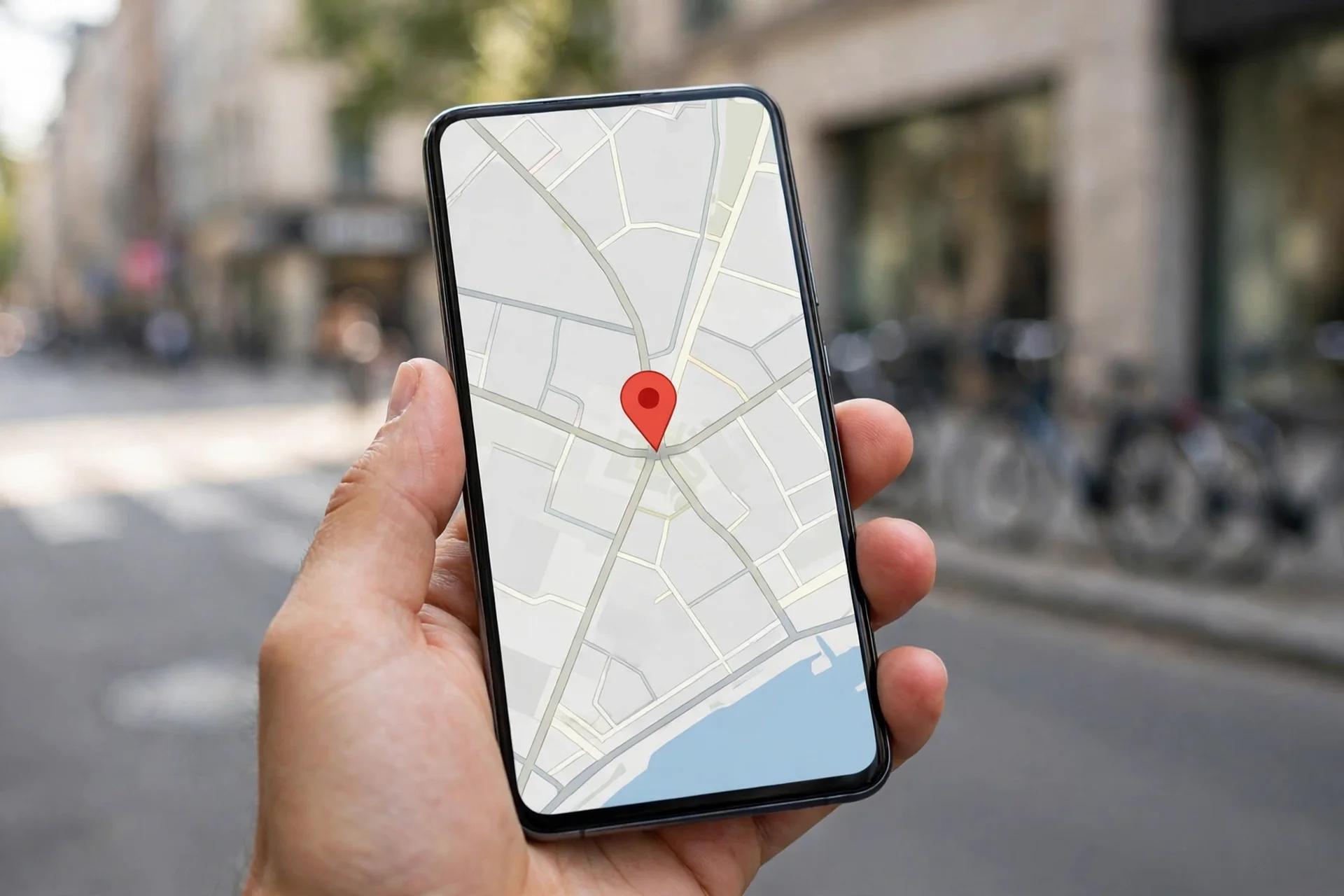
Apps that track your location in the background use the GPS radio constantly, and GPS is expensive in battery terms. Open Settings, Privacy and Security, Location Services and review the list. For most apps, “While Using the App” is enough. Reserve “Always” for the few apps that genuinely need it, such as weather alerts or navigation you rely on, and set anything that never needs your location to “Never”.
Precise Location is another quiet drain: for apps that only need your approximate area (news, weather, local offers), turn Precise Location off and the phone will use a much cheaper approximate method.
Fix 3: Tame the Screen: Brightness, Auto-Lock and Always On
The screen is the single biggest power consumer on any iPhone. Three quick changes help: turn on Auto-Brightness (Settings, Accessibility, Display and Text Size, Auto-Brightness), set Auto-Lock to 30 seconds or 1 minute (Settings, Display and Brightness, Auto-Lock), and use Dark Mode on OLED models, where dark pixels genuinely use less power.
On Pro models, the Always On display also costs a few percent per day. If your battery is struggling, turning it off (Settings, Display and Brightness, Always On Display) is a fair trade. Raise to Wake is a smaller but real cost too: the screen lights up every time you pick the phone up.
Fix 4: Weak Signal and 5G Drain More Than You Think
When reception is poor, your iPhone increases radio power to hold the connection, and it can drain noticeably faster even sitting idle. If you work or live in a weak-signal area, the battery list often shows high usage with little screen time. Using Wi-Fi whenever it is available helps, because Wi-Fi uses less power than a struggling mobile connection.
On 5G models, open Settings, Mobile Data (or Cellular), Mobile Data Options, Voice and Data. If 5G coverage in your area is patchy, choosing LTE/4G can stabilise both connection and battery. And if your home Wi-Fi itself keeps dropping, fix that first: our guide to Wi-Fi connected but no internet walks through the router and device fixes step by step.
Fix 5: Cut Notifications That Wake the Screen
Every notification lights up your screen, and a busy phone can wake hundreds of times a day. Open Settings, Notifications and go through the list: turn off notifications entirely for apps that do not need your attention right away, and keep lock-screen notifications only for messages, calls and truly urgent apps.
Scheduled Summary is built for this: it holds non-urgent notifications and delivers them in a batch at times you choose, so the screen wakes far less often without you missing anything important.
Fix 6: iPhone Battery Draining Fast After an iOS Update
Battery drain right after an iOS update is extremely common and usually temporary. The phone re-indexes photos, files and mail, recalibrates the battery estimate and finishes background tasks, which can take 24 to 48 hours depending on how much data you have. During that window, drain is not a reliable sign of a problem.
If the drain is still there after two full days, check for a follow-up update: Apple often releases a small patch (for example, x.0.1 or x.1.1) that addresses battery bugs from the main release. Installing it, then restarting the phone, resolves most post-update cases.
Myths that do not help
Force-closing apps from the app switcher does not save battery; iOS freezes background apps anyway, and reopening them from scratch can use more power. “Battery saver” apps cannot do anything iOS does not already do. And fully draining a modern lithium battery to 0% does not calibrate it; it wears it faster.
Habits that do help
Keep the phone out of heat, which ages the battery permanently. Use Optimised Charging so the phone does not sit at 100% all night. Charge with the cable when you can; wireless charging is less efficient and warms the battery more.
When the Battery Itself Needs Replacing

If your Maximum Capacity is below 80%, the phone shows a Service message under Battery Health, or it shuts down unexpectedly with charge remaining, the honest answer is that the battery is worn out and settings will only soften the problem. A replacement restores the phone to close to its original battery life and is far cheaper than a new phone.
Apple explains how lithium-ion batteries age and why capacity falls over time on its official batteries page, and battery service can be booked through Apple or an authorised provider. Before paying, back up the phone and confirm the Battery Health reading, so you can compare it after the replacement.
Conclusion
An iPhone battery draining fast is almost never random. Check Battery Health first, then let the battery usage screen point at the real culprit: one or two apps working in the background, location services running all day, a screen that wakes too often, or a weak signal forcing the radios to work overtime. Apply the fixes in order and re-check the battery screen after a day; the improvement shows up in the same numbers you used to diagnose it. Portuguese readers can find the same guide on our main site: como economizar bateria do iPhone.
Frequently Asked Questions
Why is my iPhone battery draining so fast all of a sudden?
Sudden drain usually has a trigger: a recent iOS update finishing background work, an app update that increased background activity, a change in signal quality where you spend the day, or a new app using location in the background. Check Settings, Battery to see which app or activity jumped, and check Battery Health for wear.
Why does my iPhone battery drain overnight?
Overnight drain comes from background work: apps refreshing, mail fetching, backups and syncing over Wi-Fi, or the phone hunting for signal in a weak-coverage bedroom. Turning off Background App Refresh for heavy apps, using Scheduled Summary for notifications, and charging with Optimised Charging on usually reduces it a lot. Losing more than 10 to 15% overnight with no use is worth investigating.
Is 80% battery health bad for an iPhone?
80% is the line Apple uses: batteries are designed to keep up to 80% of original capacity after 500 full charge cycles. Below 80%, the battery is officially considered degraded, drain feels faster, and replacement is recommended if the phone also shows a Service message or unexpected shutdowns.
Does closing apps from the app switcher save battery?
No. iOS already freezes apps in the background so they use almost no power. Force-closing them means the phone has to load everything from scratch next time, which can use more energy. It is better to limit Background App Refresh and location access for the heavy apps instead.
Why does my battery drain fast after updating iOS?
After an update the phone re-indexes your photos, files and mail and recalibrates the battery estimate, which uses extra power for 24 to 48 hours. If drain continues after two days, install the next small patch update and restart the phone; persistent post-update drain is usually a bug that Apple fixes in those patches.
Does 5G drain iPhone battery faster than 4G?
It can, especially where 5G coverage is weak or patchy, because the phone works harder to hold the connection and switches between networks. If your area has unstable 5G, setting Voice and Data to LTE/4G in Mobile Data Options often improves both stability and battery life.
Should I replace my iPhone battery or buy a new phone?
If the phone is otherwise fast enough and the only problem is battery life, replacement is much cheaper and restores close to original endurance. Check Maximum Capacity first: below 80% with a Service message means replacement is the effective fix. A new phone makes sense when the device is also slow, unsupported by new iOS versions, or damaged.
Do “battery saver” apps actually work?
No. Third-party apps cannot control iOS background processes or radios; at best they repeat tips, at worst they add their own background activity and ads. Everything that genuinely saves battery on an iPhone is in Settings: Background App Refresh, Location Services, notifications, screen settings and Battery Health.