Wi-Fi Connected but No Internet: 9 Fixes That Work
Your phone, laptop or TV is connected to Wi-Fi, the signal bars look full, and yet nothing loads. This “wifi connected but no internet” problem is one of the most common home network issues, and in most cases the cause is simple: the connection between your device and the router is fine, but the router itself has lost its link to the internet, or your device is holding a broken network configuration.
The good news is that you can usually fix it in under 15 minutes, without calling your provider and without buying anything. Work through the fixes below in order, from the fastest checks to the deeper resets, and test the connection after each step. Most people solve the problem in the first three fixes.
In this guide you will learn:
- What Does “Wifi Connected but No Internet” Mean?
- Fix 1: Restart Your Modem and Router in the Right Order
- Fix 2: Forget the Network and Connect Again
- Fix 3: Find Out Where the Problem Is
- Fix 4: Check the Router Itself
- Fix 5: Turn Off VPN, Proxy and Private DNS Temporarily
- Fix 6: Change Your DNS to a Public Server
- Fix 7: Reset Network Settings (Last Resort on the Device)
- When the Problem Is Your Provider
- Frequently Asked Questions
What Does “Wifi Connected but No Internet” Mean?
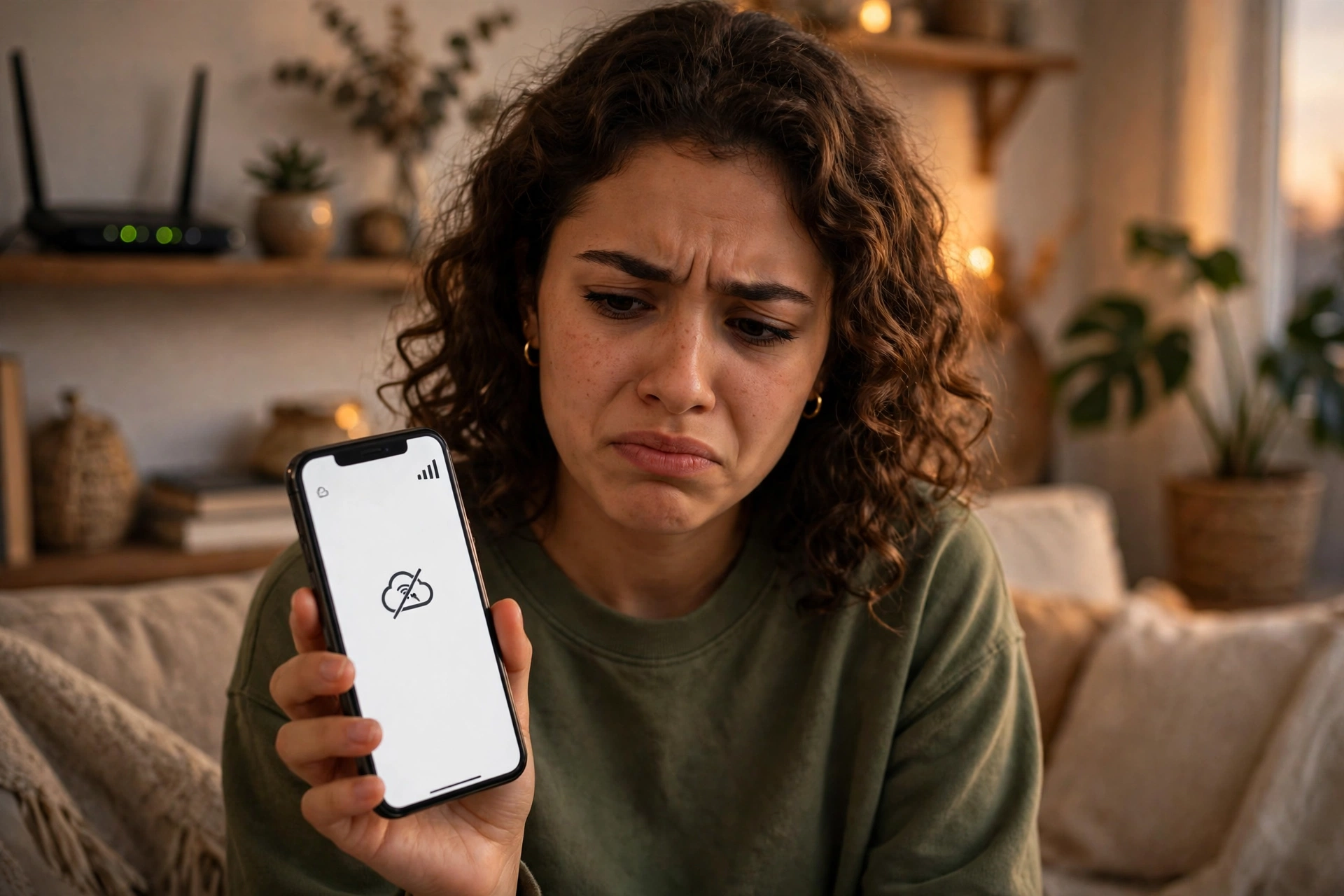
It means your device successfully joined your Wi-Fi network, but that network currently has no working path to the internet. Think of it as two separate links: device to router, and router to the outside world. The first link is working, the second one is not, or your device is using saved settings that no longer match the network.
This is why the Wi-Fi icon can look perfectly normal while every app reports that you are offline. Android usually shows the message “Connected, no internet” or “Connected without internet”, Windows says “No Internet, secured”, and iPhones simply stop loading pages while the Wi-Fi symbol stays on. The fixes below repair the second link or refresh your device’s settings so both links work again.
Fix 1: Restart Your Modem and Router in the Right Order
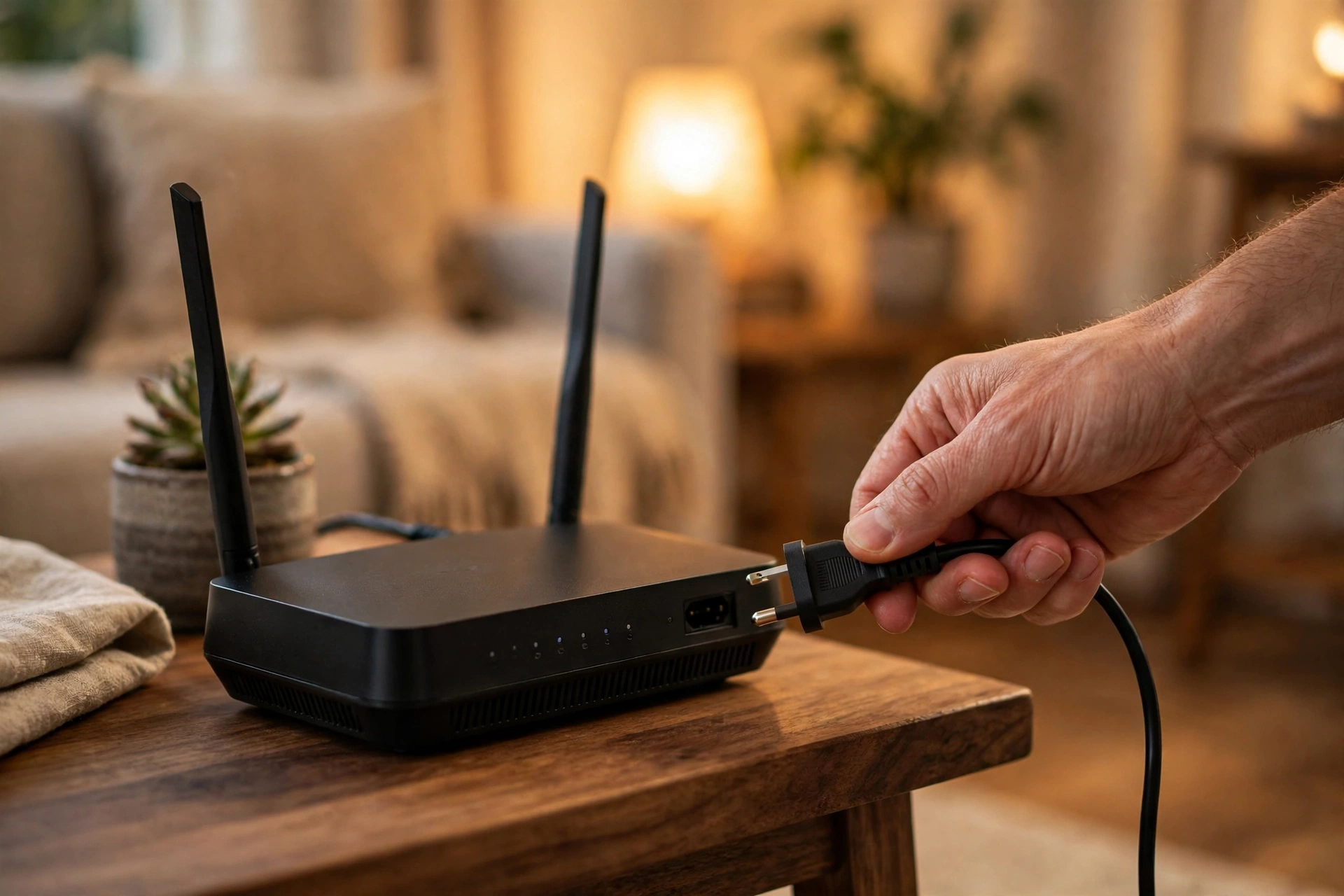
A proper restart clears temporary errors in the router’s memory and forces a fresh connection with your provider. The order matters: unplug both the modem and the router (or the single combined box, if you have one), wait a full 60 seconds, plug the modem back in first and wait until its lights stabilise, then plug in the router and give it two to three minutes to fully start.
Simply pressing a power button or doing a quick five-second unplug is often not enough, because the equipment needs time to fully discharge and renegotiate the connection. While you wait, also restart the device that is having the problem. If the internet returns after this restart, the issue was a temporary fault and no further steps are needed.
Fix 2: Forget the Network and Connect Again
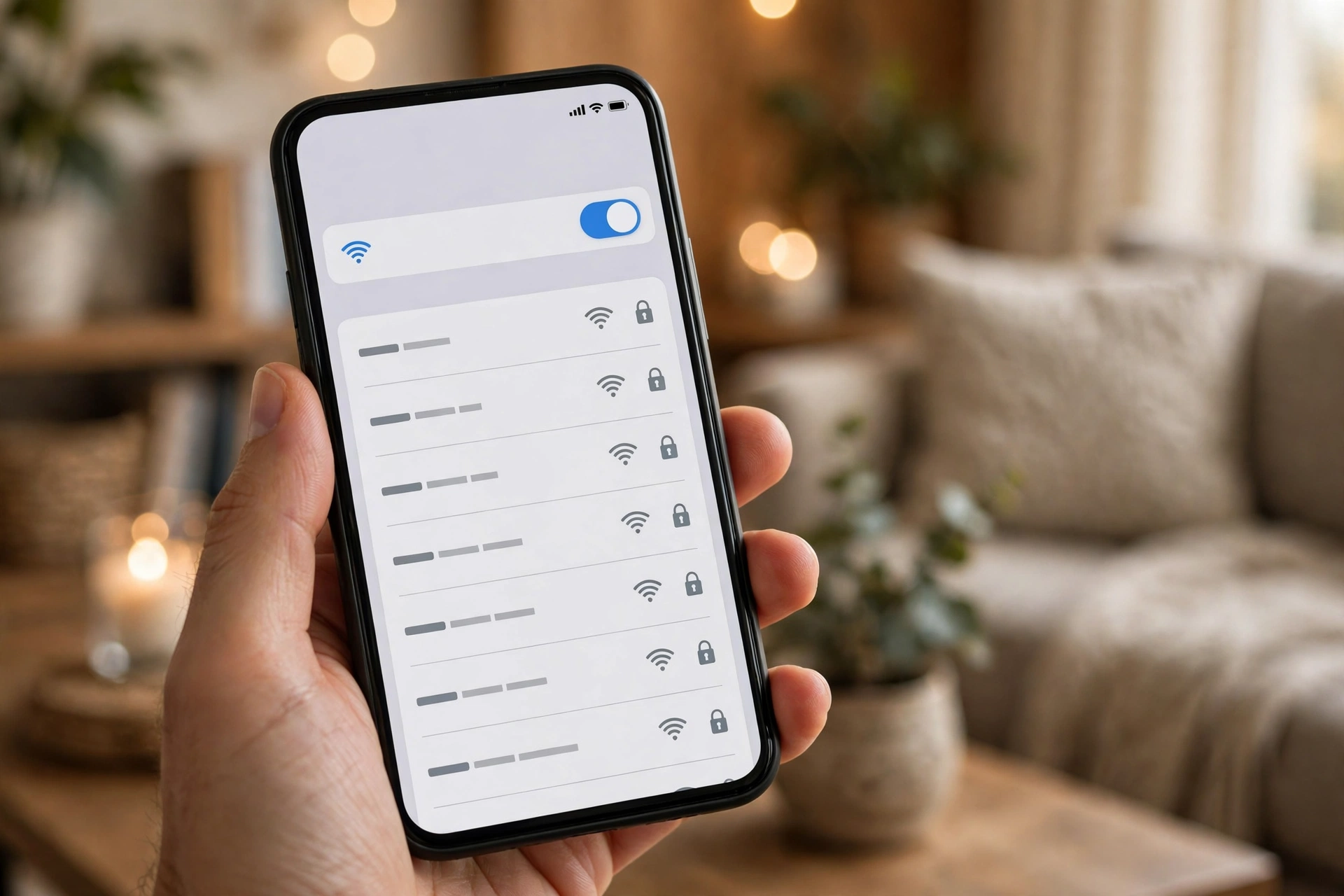
If only one device has the problem, its saved copy of the network is often damaged. Forgetting the network deletes those saved settings so the device can build a clean connection. On Android, open Settings, Network and internet, Internet, tap your network, choose Forget, then connect again and type the password. On iPhone, open Settings, Wi-Fi, tap the “i” next to your network, choose Forget This Network, and reconnect.
Before reconnecting, toggle Airplane mode on for 15 seconds and off again. This forces the phone to rebuild all of its wireless connections at once and clears small radio glitches that a simple Wi-Fi toggle sometimes misses.
Fix 3: Find Out Where the Problem Is

Knowing whether the fault is in one device, in the router or at your provider saves a lot of time. Test two or three different devices on the same Wi-Fi. If none of them can open a website, the problem is the router or the provider. If only one device fails, the problem is inside that device, and Fixes 2, 5 and 6 are the ones that matter.
| What you observe | Most likely cause | Go to |
|---|---|---|
| No device has internet on Wi-Fi | Router fault or provider outage | Fix 1, then Fix 7 |
| Only one device has no internet | Saved settings or software glitch on that device | Fix 2, Fix 5, Fix 6 |
| Internet works, but drops several times a day | Router overheating, interference or old firmware | Fix 4 and Fix 7 |
| One website or app fails, everything else works | The app or site itself, or a VPN/proxy conflict | Fix 5 |
Fix 4: Check the Router Itself
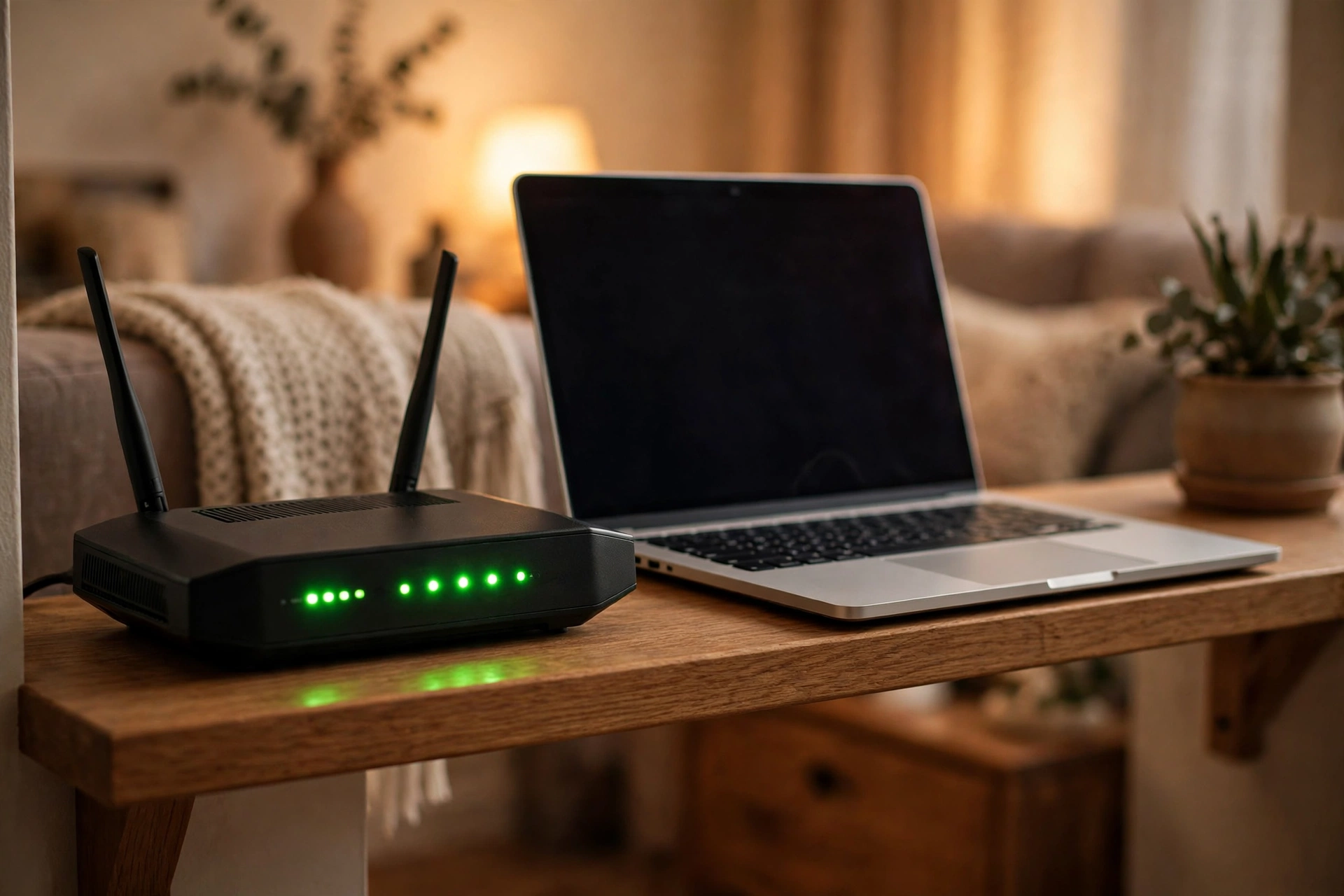
Look at the router’s lights: a red or blinking “internet”, “WAN” or globe light means the router is not receiving a proper signal, even if the Wi-Fi light is green. Check that the cable entering the router (coaxial, fibre or DSL) is firmly seated at both ends, move the router to an open spot if it feels hot, and keep it away from thick walls and metal objects that weaken the signal.
If your router offers both 2.4 GHz and 5 GHz networks, connect to the other band and test again. Sometimes one band fails or is heavily congested while the other works normally. Older routers also benefit from a firmware update, which you can start from the router’s administration page or the manufacturer’s app.
Fix 5: Turn Off VPN, Proxy and Private DNS Temporarily

A VPN app, a manual proxy or a misconfigured private DNS can block all traffic while Wi-Fi itself stays connected. Disconnect the VPN completely (do not just pause it), and on Android open Settings, Network and internet, Private DNS, and set it to Automatic if it was changed manually. On iPhone, check Settings, Wi-Fi, your network, Configure Proxy, and make sure it is set to Off unless your workplace requires it.
Date and time matter too. If your phone’s clock is wrong, secure websites refuse to load and it can look like there is no internet. Set date and time to automatic on the device and test again.
Fix 6: Change Your DNS to a Public Server
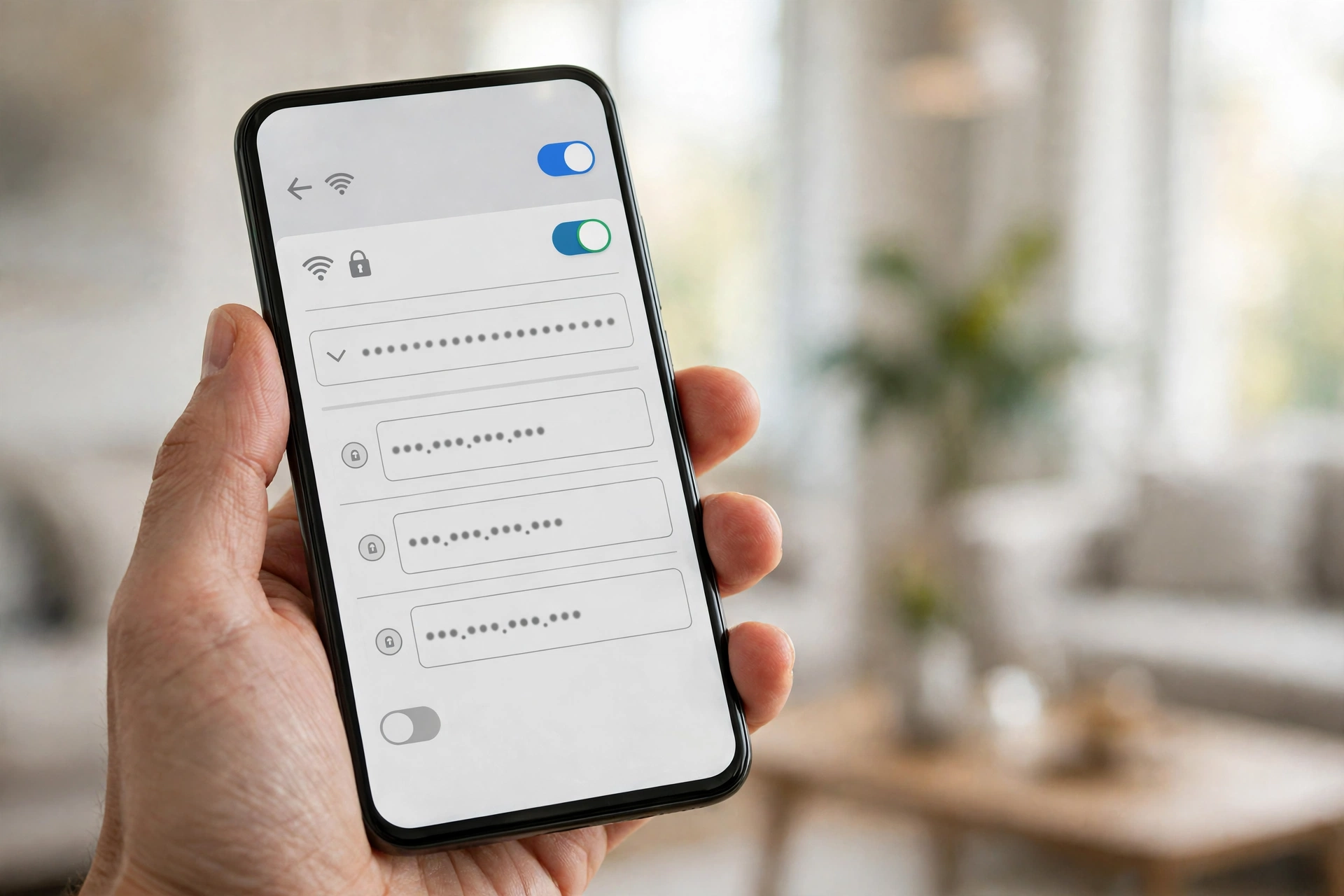
DNS is the system that turns website names into addresses. When your provider’s DNS servers fail, pages stop loading even though the connection is alive, and changing DNS is a classic fix for the “wifi connected but no internet” error. You can set it per device or directly in the router so it applies to the whole house.
On Android, open Settings, Network and internet, Private DNS, choose “Private DNS provider hostname” and enter dns.google. On iPhone, open Settings, Wi-Fi, your network, Configure DNS, Manual, and add 8.8.8.8 and 1.1.1.1. Public DNS services from Google and Cloudflare (1.1.1.1) are free and widely used for exactly this situation. If pages start loading immediately after the change, your provider’s DNS was the problem.
Fix 7: Reset Network Settings (Last Resort on the Device)
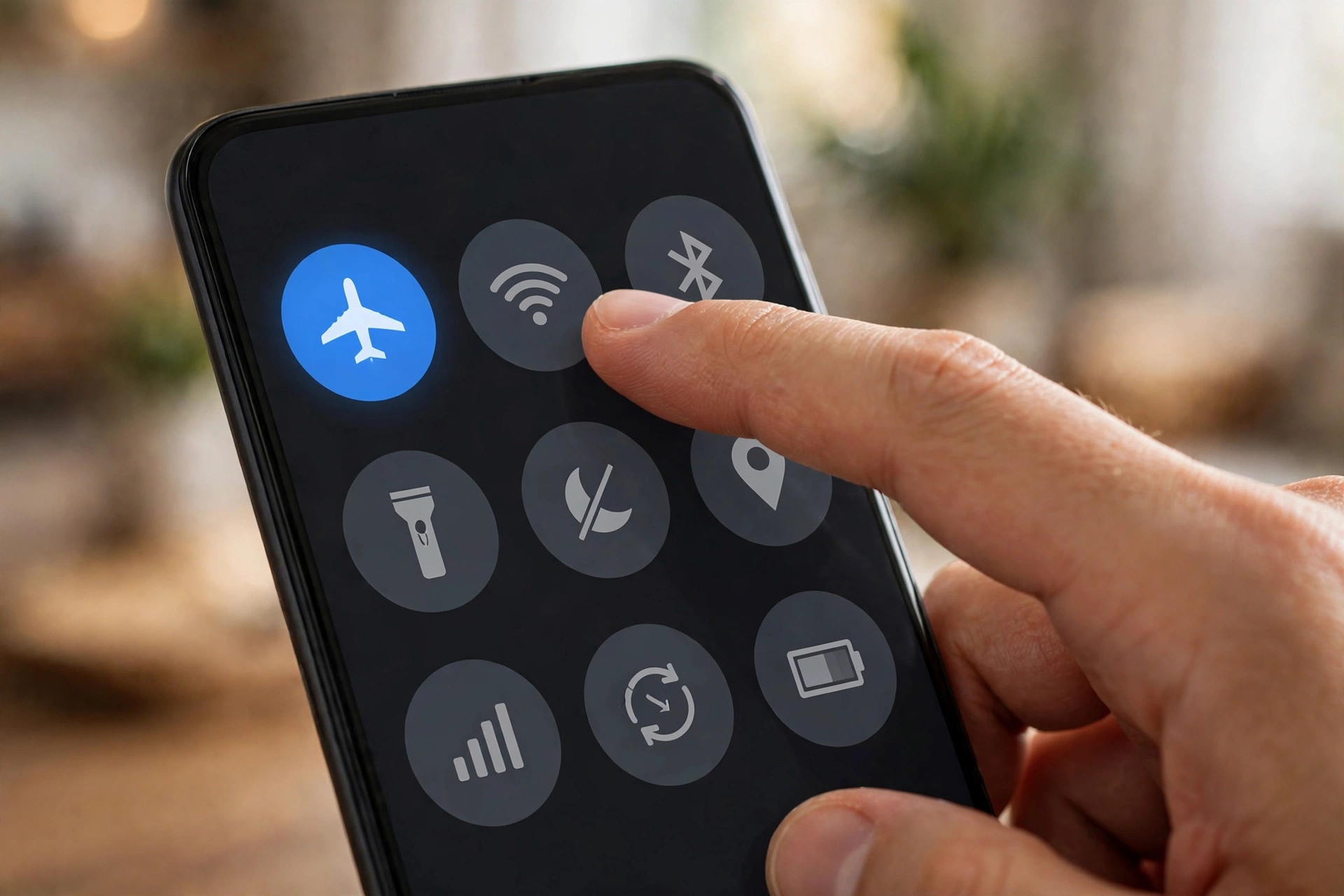
If one device still refuses to work after all the steps above, reset its network settings. This erases saved Wi-Fi networks, Bluetooth pairings and mobile network settings, but does not delete photos, apps or files. On Android: Settings, System, Reset options, Reset Wi-Fi, mobile and Bluetooth. On iPhone: Settings, General, Transfer or Reset iPhone, Reset, Reset Network Settings.
Do this
Work in order and test after each fix. Restart equipment with a full 60-second unplug. Keep the router in an open, central spot. Write down your Wi-Fi password before forgetting the network or resetting settings.
Avoid this
Do not press the router’s recessed Reset button unless your provider asks: it wipes your network name and password. Do not install “Wi-Fi booster” apps; they cannot repair a broken connection and many are adware.
When the Problem Is Your Provider

If every device in the house is offline and a proper restart changed nothing, the fault is probably outside your home: a neighbourhood outage, maintenance, or a line problem. Check your provider’s app or outage page using mobile data, and ask a neighbour with the same provider if their connection is also down.
When you call support, say exactly what you already tried: full restart in the correct order, router lights status, and that all devices are affected. This moves the call past the basic script and towards a line test or a technician visit. If outages repeat several times a month, ask for the line and the equipment to be checked; an ageing router replaced by the provider solves many recurring cases.
Conclusion
“Wifi connected but no internet” almost always comes down to one of three things: a router that needs a proper restart, a device holding broken saved settings, or a provider-side fault. Restarting in the right order, forgetting and reconnecting, and changing DNS solve the large majority of cases at home. If your phone also struggles with battery life while you troubleshoot, our guide on iPhone battery draining fast covers the fixes that make a real difference, and our Portuguese edition of Tech On Dicas has a full guide to Wi-Fi that connects but does not load for Portuguese readers. If your Wi-Fi will not connect at all, see our guide to Wi-Fi not working. Once you are back online, you can put the connection to use on the big screen — see how to mirror your phone to a TV for the Android, iPhone, Fire TV, Roku and HDMI options.
Frequently Asked Questions
Why does my Wi-Fi say connected but no internet?
Your device is connected to the router, but the router has no working route to the internet, or your device is using damaged saved settings. Restarting the modem and router in the right order and forgetting and reconnecting the network fixes most cases.
How do I fix “connected without internet” on Android?
Toggle Airplane mode for 15 seconds, forget the network in Settings, Network and internet, Internet and reconnect, then set Private DNS to Automatic. If it persists, reset Wi-Fi, mobile and Bluetooth in Settings, System, Reset options.
Why does only one device have no internet while others work?
When other devices work on the same network, the router and provider are fine and the problem is inside that one device: saved network settings, a VPN or proxy, wrong date and time, or a software glitch. Forget and reconnect the network, disable VPNs, and reset network settings if needed.
Can changing DNS really fix this problem?
Yes. If your provider’s DNS servers fail, websites cannot be resolved and it looks like there is no internet, even though the connection works. Switching to a public DNS such as Google (8.8.8.8) or Cloudflare (1.1.1.1) often restores browsing immediately.
How long should I unplug the router when restarting?
Wait at least 60 seconds with the power disconnected. A very short unplug may not fully discharge the equipment or drop the old session with your provider, so the same error returns. Plug the modem in first, let it stabilise, then the router.
Does resetting network settings delete my photos or apps?
No. A network settings reset only erases saved Wi-Fi networks and passwords, Bluetooth pairings and mobile data settings. Your photos, apps, messages and files stay untouched, but you will need to type your Wi-Fi passwords again.
Why does this problem keep coming back every few days?
Recurring cases usually point to an overheating or ageing router, outdated router firmware, or an unstable line from your provider. Move the router to an open spot, update its firmware, and if drops continue, ask your provider to test the line and consider replacing the equipment.
Should I press the router’s Reset button?
Only as a last resort or if your provider asks. The recessed Reset button restores factory settings, which erases your Wi-Fi name, password and any custom configuration. A power restart (unplugging) is different and safe: it keeps all your settings.