How to Mirror Your Phone to a TV (Android & iPhone)
How to mirror Android to TV? Mirroring your phone to a TV means showing exactly what is on your phone screen — photos, videos, apps, games, a video call — on the big screen, live. Most modern phones and TVs can do it with nothing extra to buy: Android phones use Google Cast or Samsung Smart View, iPhones use AirPlay, and if your TV has none of those built in, a streaming stick or a cable covers the rest.
The method that works depends on two things only: which phone you have, and which TV you have. Pick the wrong method and the TV simply never appears in the list — the most common reason mirroring “does not work”. The decision table below finds your method in seconds; the steps after it are verified against the manufacturers’ own help pages.
One thing to know before you start: mirroring is not the same as casting a single video from an app such as YouTube. Casting sends one video to the TV and frees your phone; mirroring copies your whole screen. The difference is explained near the end, because it changes which method you should choose — and how fast your battery drains.
In this guide you will learn:
- Before You Start: Same Wi-Fi, TV On, and the Right Method
- How to Mirror Android to TV With Chromecast Built-In / Google Cast
- Android: Mirror With Samsung Smart View
- iPhone: Mirror With AirPlay
- No Built-In Cast? Use a Streaming Stick: Fire TV Stick or Roku
- Wired Option: Mirror With an HDMI Cable and Adapter
- Mirror Not Working? Fix It in This Order
- Casting vs Mirroring: What Is Different
- Frequently Asked Questions
Before You Start: Same Wi-Fi, TV On, and the Right Method
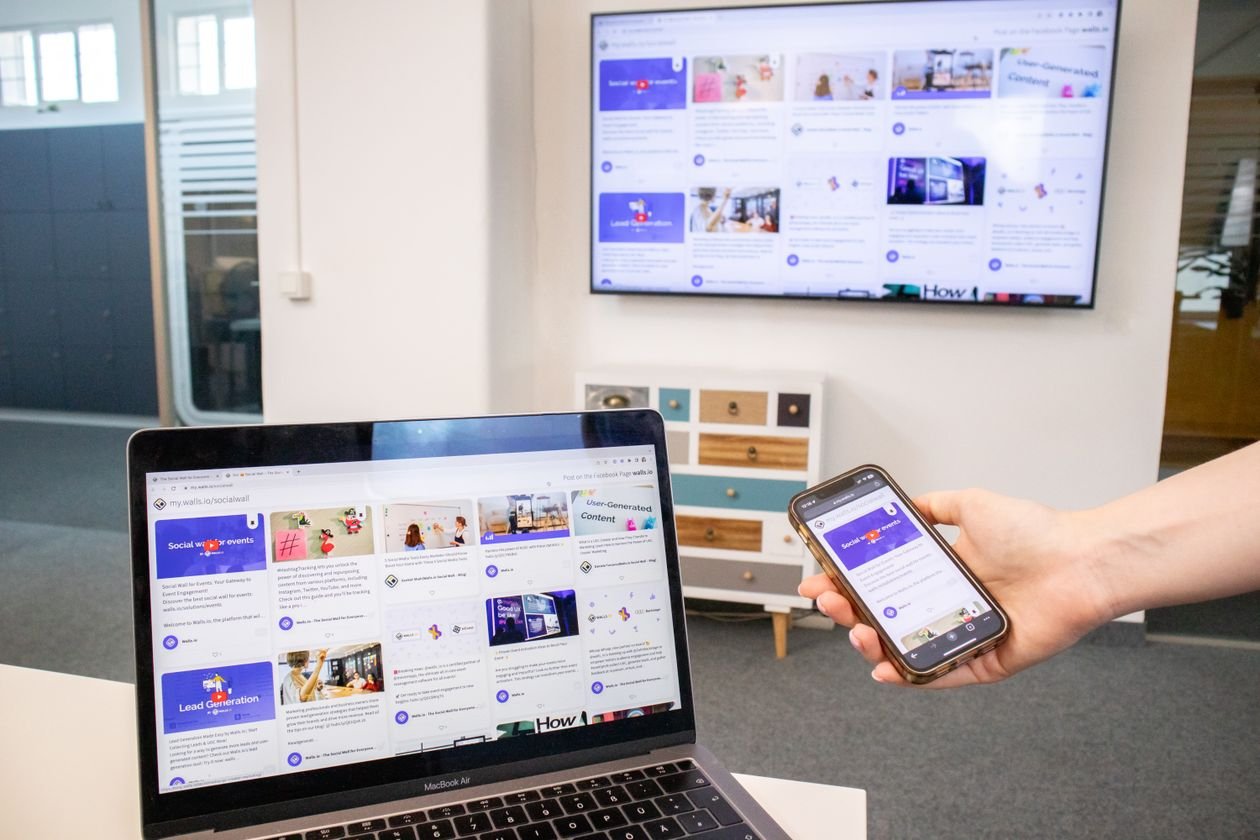
Almost every wireless method here has the same two requirements: your phone and your TV must be on the same Wi-Fi network, and the TV must be switched on. That is the number-one cause of a TV not appearing in the list — a phone on the 5 GHz band and a TV on the 2.4 GHz band of the same router are on different networks as far as mirroring is concerned, even though both are “connected to Wi-Fi”.
Also check that the TV’s own casting feature is switched on. On some TVs AirPlay or Chromecast built-in can be disabled in the TV’s settings, and then the TV will never show up no matter what you tap on the phone.
| Your phone | Your TV | Use this method |
|---|---|---|
| Android (any brand) | Chromecast built-in, Google TV, or Android TV | Google Cast — section 2 |
| Samsung Galaxy | Samsung TV (2015 or later) | Smart View — section 3 |
| iPhone | Apple TV, or an AirPlay-compatible smart TV | AirPlay — section 4 |
| Android | Fire TV Stick or Fire TV | Display Mirroring — section 5 |
| Android (not a Pixel) | Roku player or Roku TV | Screen mirroring — section 5 |
| iPhone | Roku (AirPlay-compatible model) | AirPlay — sections 4 and 5 |
| Any phone | Any TV with a spare HDMI port | HDMI cable and adapter — section 6 |
If the TV still will not connect, the Wi-Fi itself may be the problem rather than mirroring. Fix it first with our guide to Wi-Fi not working, then come back here. Portuguese readers can find the same guidance in the Portuguese guide to connecting a smart TV to Wi-Fi.
How to Mirror Android to TV With Chromecast Built-In / Google Cast
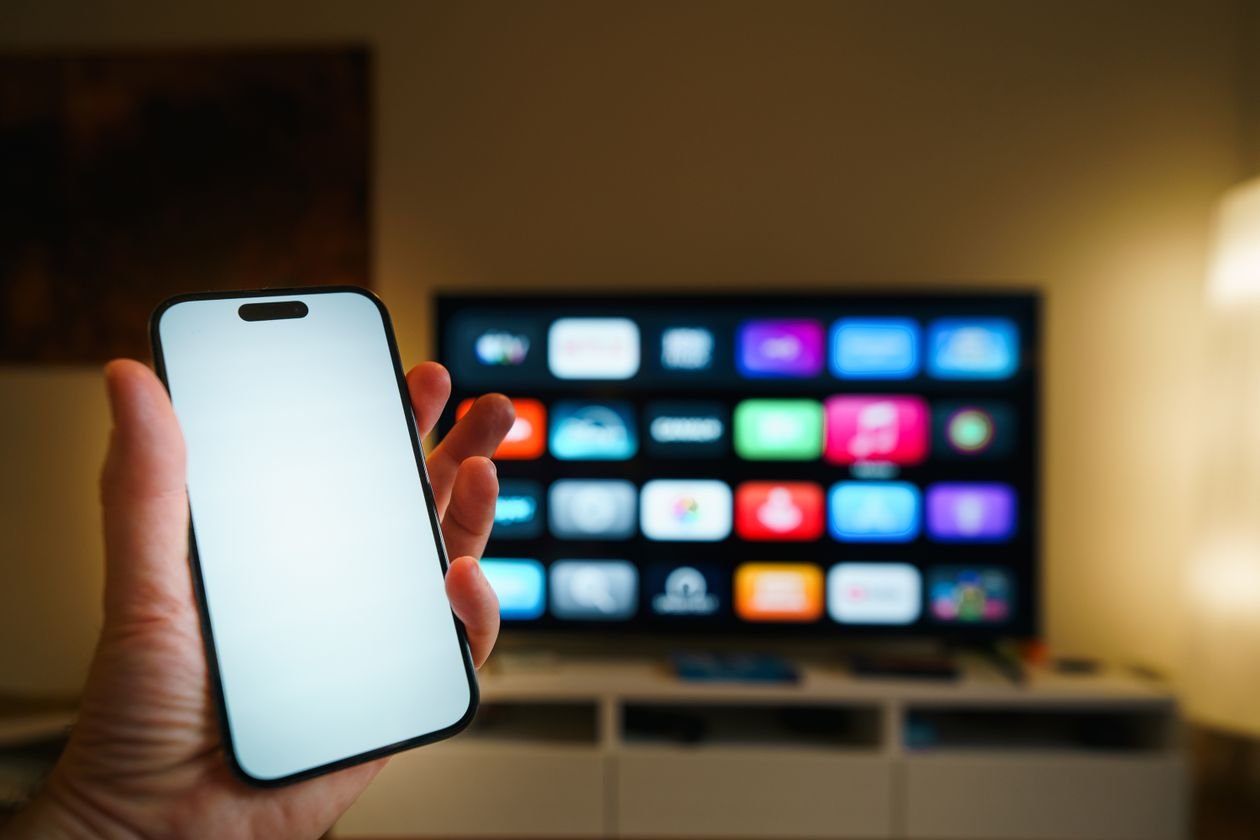
This is the method for most Android phones, and it works with any TV that has Chromecast built-in, runs Google TV or Android TV, or has a Chromecast plugged in. Your phone needs Android 8.0 or later, and you need to turn on microphone permission for Google Play services first — without it, the Cast option may not appear.
To mirror your whole screen, open the Google Home app, go to Favorites or Devices, touch and hold the tile for your TV, tap Cast, then Cast my screen and confirm with Cast screen. To stop, go back to the same screen and tap Stop mirroring. To share one app instead of your whole screen, choose Cast one app on that same screen.
There is a quicker route on many phones. Swipe down twice from the top of the screen to open Quick Settings and tap the Cast tile — on a Pixel this is the fastest way in. You can also find it in Settings under Connected devices → Connection preferences → Google Cast. If the Cast tile is missing, tap the edit icon in the Quick Settings panel and add it. And if you only want to play one video, you do not need screen mirroring at all: open a Cast-enabled app such as YouTube, tap the Cast icon, pick the TV, and the TV plays the video while your phone works as a remote. Google’s own instructions are on its Cast your Android screen help page.
Android: Mirror With Samsung Smart View
If you have a Samsung Galaxy phone and a Samsung TV, Smart View is the simplest method: it is built into the phone, with no app to download. It works with Samsung TVs running Tizen from 2015 onwards, and it is designed around Samsung TVs, so it may work differently or not at all with other brands.
Switch the TV on and make sure both devices are on the same Wi-Fi network. On the phone, swipe down to open Quick Settings and tap Smart View — if you cannot see it, tap Edit in the panel and add it. Your TV should appear under Available devices: tap it, then tap Start now. On the TV, select Allow, or enter the PIN shown on the TV if one appears.
There is a second route to the same place: open Settings, go to Connected Devices, then Smart View. To stop mirroring, tap the Smart View icon again and choose Disconnect. If the picture has black bars on the sides, the aspect ratio can be changed from the Smart View controls. Samsung’s own guide is at How to connect your TV and mobile device with Smart View.
iPhone: Mirror With AirPlay
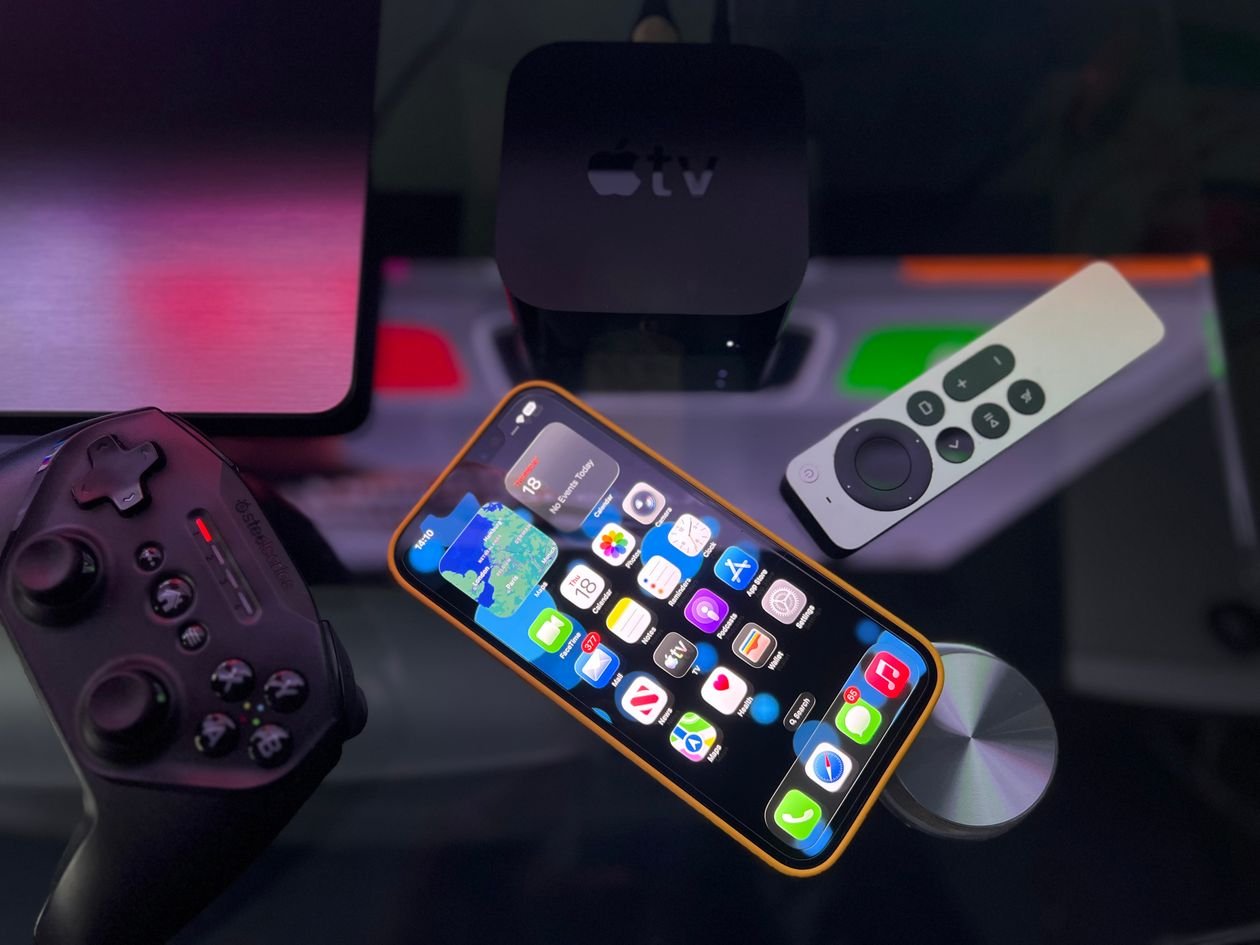
AirPlay is Apple’s way of doing the same thing, and it works with an Apple TV, an AirPlay-compatible smart TV, or a Mac. The iPhone and the TV must be on the same Wi-Fi network, and if the TV does not appear in the list, check first that AirPlay is switched on in the TV’s own settings — on many smart TVs it is off by default.
Open Control Center: on an iPhone X or later, swipe down from the top-right corner; on an iPhone 8 or earlier, swipe up from the bottom. Tap Screen Mirroring — the icon is two overlapping rectangles — then tap your TV. If an AirPlay passcode appears on the TV, enter it on the iPhone. To stop, open Control Center again, tap Screen Mirroring and choose Stop Mirroring; on an Apple TV you can also press the Menu button on the remote.
AirPlay also handles single videos without mirroring your whole screen: in a video app, tap the AirPlay icon and pick the TV, and only that video plays — the better choice for a film night, because your messages stay private. Apple’s own instructions are on its Use AirPlay to stream video or mirror the screen of your iPhone or iPad support page.
If your TV is not listed at all, it probably is not AirPlay-compatible. The alternatives below cover that case: a compatible Roku with AirPlay, or the wired HDMI route, which works with any TV.
No Built-In Cast? Use a Streaming Stick: Fire TV Stick or Roku
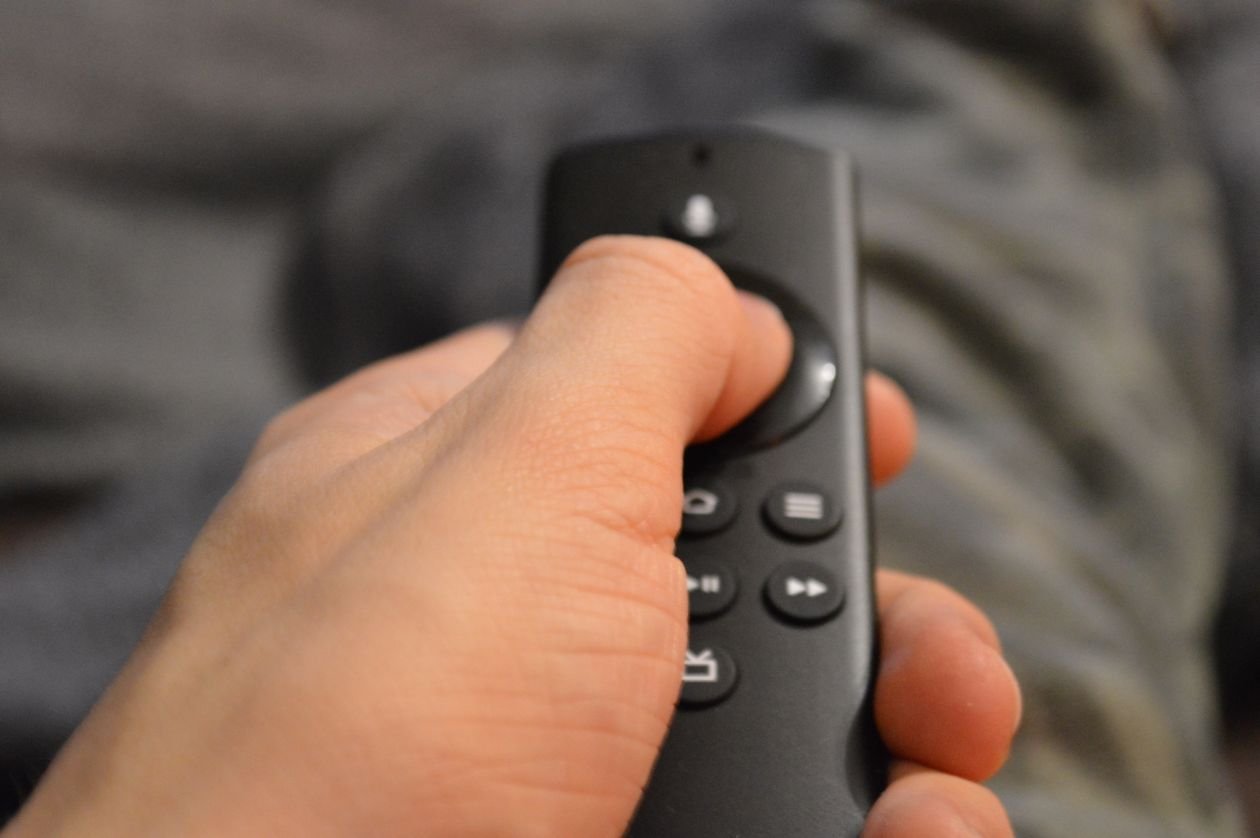
If your TV has no Chromecast built-in and no AirPlay, a streaming stick adds it. The two common ones work differently, and the difference matters: Fire TV uses Miracast, Roku uses Miracast for Android and AirPlay for iPhone, and a Google Pixel cannot whole-screen mirror to a Roku at all.
Fire TV Stick and Fire TV — Android only. On the Fire TV, go to Settings > Display & Sounds > Enable Display Mirroring and leave that screen open — the TV shows its device name and waits for a connection. If that option does not appear, your Fire TV model does not support mirroring; Amazon lists the Fire TV (3rd Gen, 2017) as one without it, and menus differ on some newer Fire OS 14 and Vega OS models. On the phone, stay on the same Wi-Fi network and within about 10 metres (30 feet) of the TV, swipe down Quick Settings, tap the Smart View, Cast or Screen Cast tile, then pick the Fire TV. Your phone must support Miracast (Android 4.2 and later), and a phone whose cast button only lists Chromecast or Google TV devices will not find a Fire TV. Two hard limits: iPhones and Macs are not supported, because a Fire TV is not an AirPlay receiver, and protected video such as Netflix shows a black rectangle over Miracast while the audio continues.
Roku — Android by screen mirroring, iPhone by AirPlay. On the Roku, go to Settings > System > Screen Mirroring > Screen mirroring mode and choose Prompt (approve each request) or Always allow. Most current Roku players and Roku TVs support it; some older models, such as the Express 3700, do not. On an Android phone, stay on the same Wi-Fi network, open Quick Settings, tap Smart View or your phone’s mirroring tile, select the Roku, and tap Allow on the TV when prompted. The Pixel exception is confirmed by Roku itself: Android 10 and later generally supports mirroring, but Google-branded devices — Nexus and Pixel, from Android 6.0 onwards — are explicitly not supported, because Pixels use Google Cast rather than Miracast. A Pixel owner should cast from inside a supported app instead. On an iPhone, use AirPlay on AirPlay-compatible Roku models, as in the previous section.
Wired Option: Mirror With an HDMI Cable and Adapter
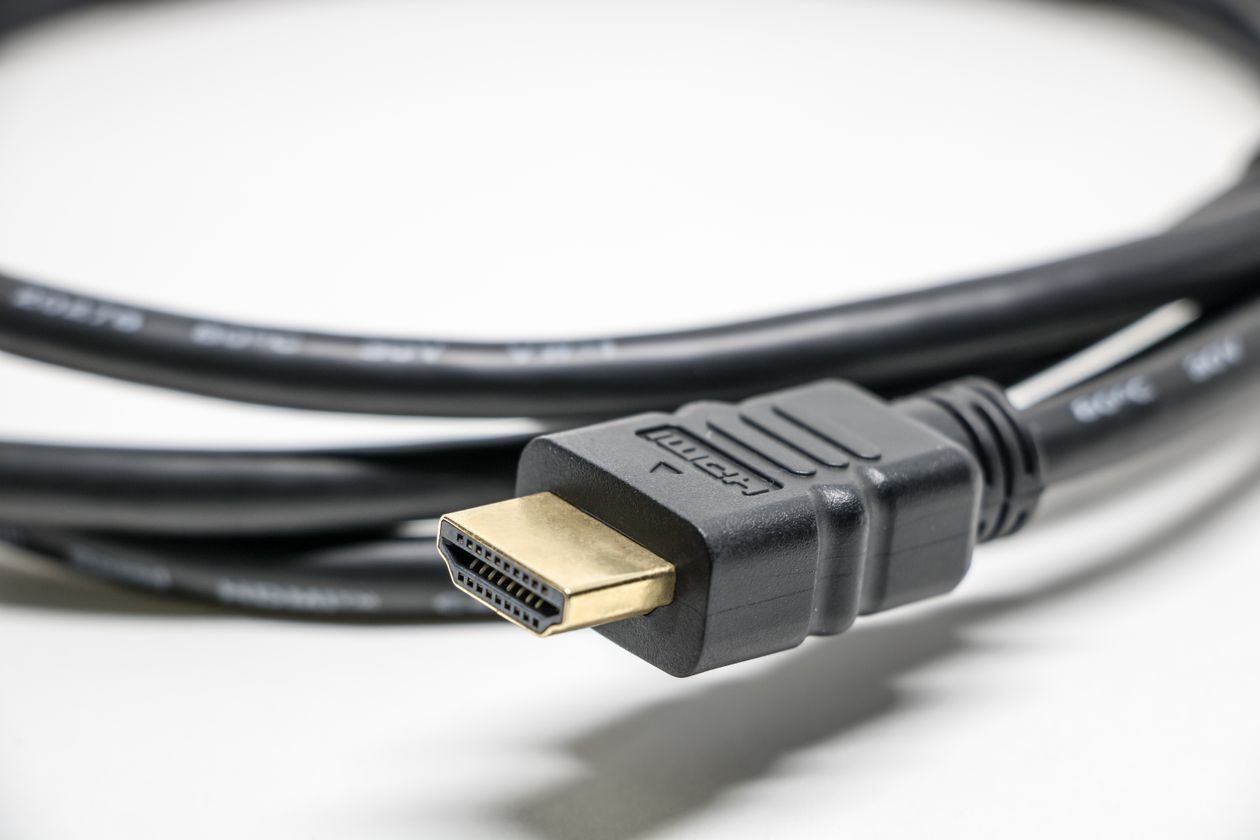
A cable is the most reliable way to mirror a phone, and the only one that works when there is no Wi-Fi at all. You need an adapter for your phone’s charging port and an HDMI cable from the adapter to the TV. Switch the TV to the correct HDMI input and the picture appears — no network, no pairing, no app.
On an iPhone, the adapter depends on the model. iPhone 15 and later use USB-C to HDMI, and for 4K at 60 Hz you need HDMI 2.0 or later — Apple’s USB-C Digital AV Multiport Adapter outputs up to 4K at 60 Hz, with HDR10 and Dolby Vision on a supporting display. One exception: the iPhone 16e, iPhone 17e and iPhone Air have a USB-C port but no video output over USB-C, so a cable will not work with them — use AirPlay instead. iPhone 14 and earlier use Lightning: Apple’s Lightning Digital AV Adapter plus an HDMI cable mirrors at up to 1080p, and its spare Lightning port charges the phone during long sessions.
On Android, a USB-C to HDMI adapter works only if the phone supports video output through its port — not every Android phone does, so check the manufacturer’s specifications for your model before buying the adapter. The trade-off is obvious: your phone is tied to the TV by a cable. The advantage is just as clear: no lag from a weak Wi-Fi signal, no TV that fails to appear in a list, and the phone charges while it mirrors where the adapter supports it.
Mirror Not Working? Fix It in This Order
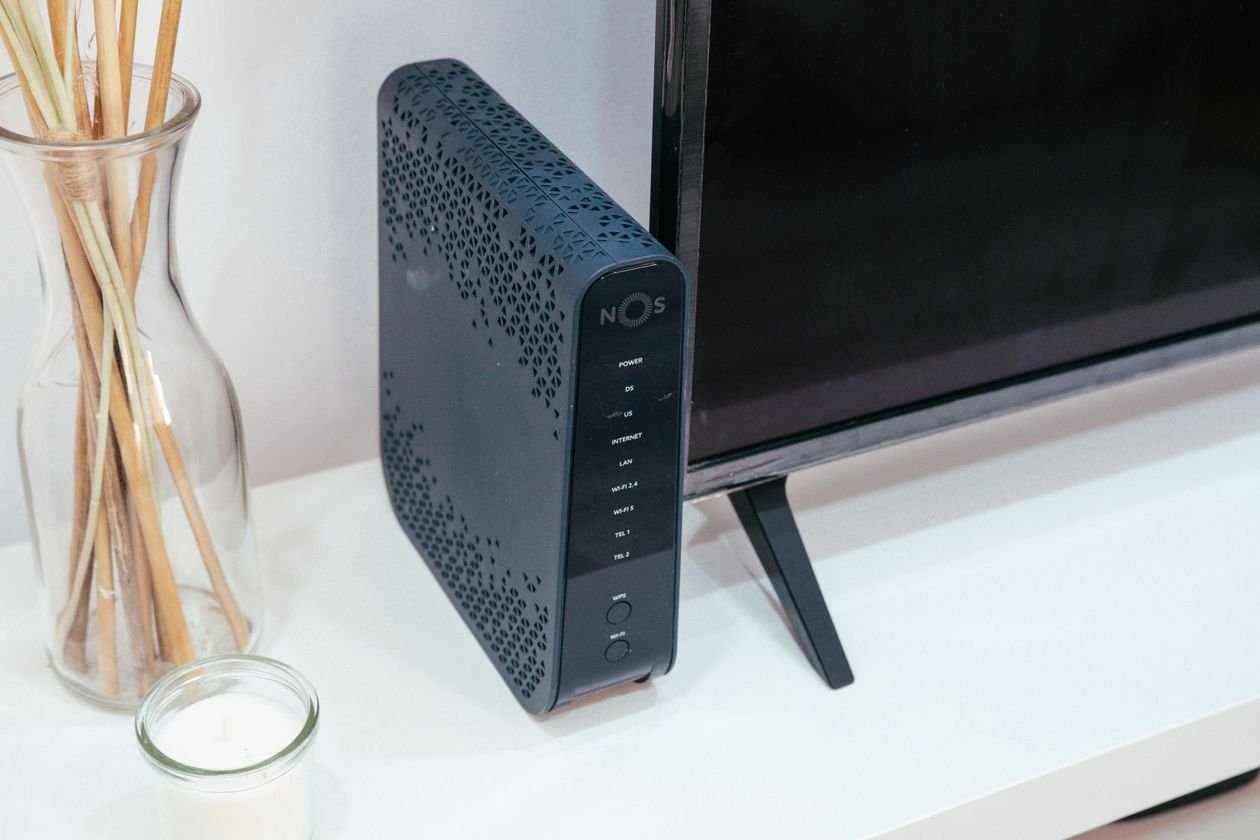
Work through these in order and test after each one. Most mirroring failures are fixed by the first two.
1. Same Wi-Fi network, on both devices. A phone on 5 GHz and a TV on 2.4 GHz are on different networks for mirroring, even if both show as connected. Put both on the same network name and try again. If the TV will not stay connected at all, fix that first with our guide to Wi-Fi not working; if it connects but nothing loads, see our guide to Wi-Fi connected but no internet.
2. Restart the TV, the phone and the router. Unplug the router for a full 30 seconds, plug it back in and wait two to three minutes, then restart the TV and the phone.
3. Check the TV’s casting setting is on. In the TV’s settings, look for Chromecast built-in, AirPlay or screen mirroring and make sure it is enabled — on some TVs these are off by default. Check for a firmware update while you are there; manufacturers regularly fix casting bugs in updates owners never install.
4. Turn off the VPN. A VPN on the phone can hide it from other devices on the same network, which stops the TV from appearing at all. Disconnect it completely and test again.
5. Try the other Wi-Fi band. If the TV is far from the router, switch both devices to 2.4 GHz, which travels through walls far better than 5 GHz; if they are in the same room, 5 GHz is faster. A weak signal shows up as lag and disconnects.
6. Reset the TV’s network settings. In the TV’s network settings, reset the network and connect again from scratch, typing the password carefully. This clears a damaged saved network.
7. Check the model exceptions. A Pixel will not whole-screen mirror to a Roku, an iPhone will not mirror to a Fire TV, an iPhone 16e, 17e or Air will not output video over USB-C, and some older Fire TV and Roku models do not support mirroring at all. If your combination is one of these, pick a different method from the table at the top.
Casting vs Mirroring: What Is Different
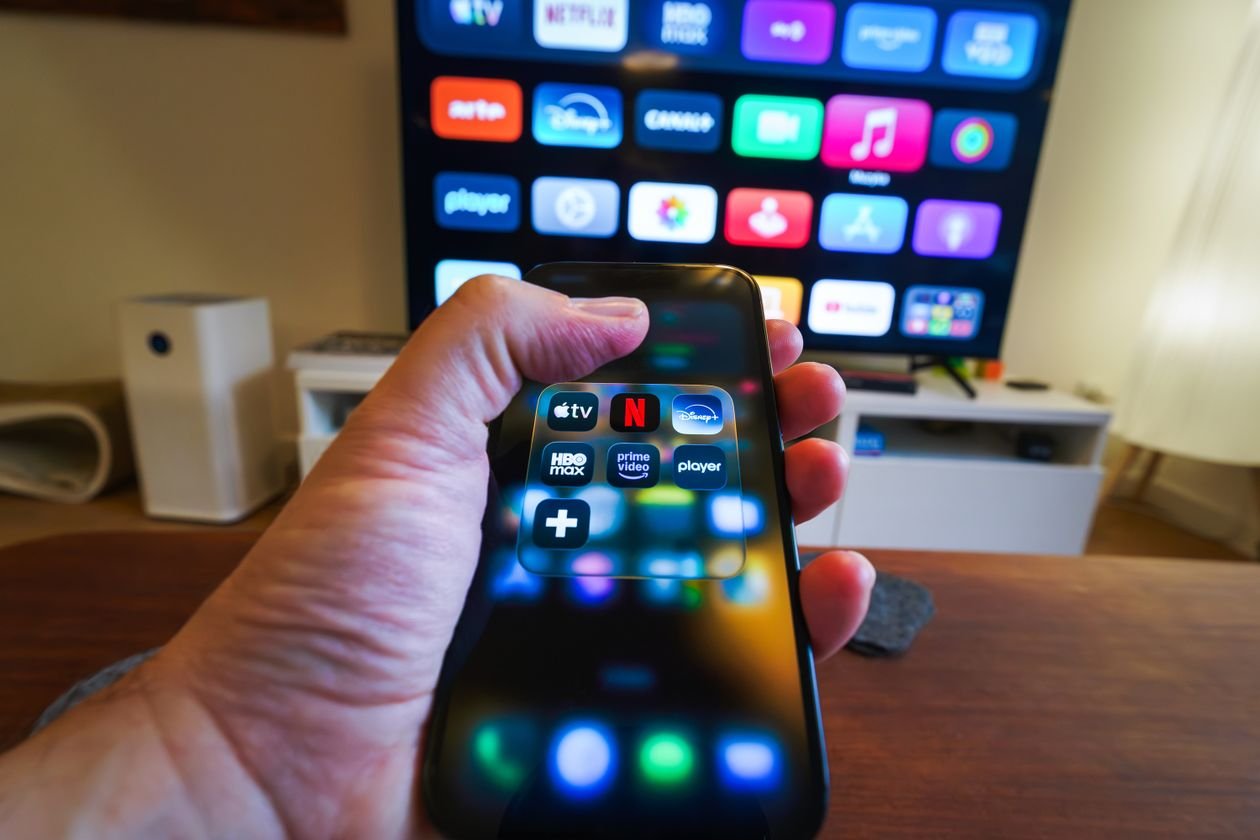
The two words are used as if they mean the same thing, and they do not. Casting sends one video or song to the TV, and your phone becomes a remote. Mirroring copies everything on your phone screen, live, to the TV — every app, every photo, every notification.
That difference decides which one to use. For a film, a football match or a YouTube video, casting is better: the picture is smoother, the phone stays free, and the battery lasts longer. For showing photos, walking someone through an app, playing a mobile game on the big screen, or a video call, mirroring is the right tool, because casting cannot show those things at all. Mirroring uses more battery, so keep the phone on charge for a long session, or use the wired route, where the adapter charges the phone while it mirrors. If your iPhone is already losing charge quickly, our guide to iPhone battery draining fast covers the fixes that actually help.
Do this
Check both devices are on the same Wi-Fi network before anything else. Pick your method from the table at the top — phone plus TV decides it. Turn on Do Not Disturb before mirroring your whole screen. For a film, cast the single video instead of mirroring.
Avoid this
Do not keep retrying a method your combination cannot do — a Pixel to Roku, an iPhone to Fire TV, or a cable on an iPhone 16e. Do not mirror protected apps such as Netflix over Miracast and expect a picture. Do not buy an adapter before checking your phone supports video output through its port.
Conclusion
Mirroring your phone to a TV comes down to matching the method to the phone and the TV you actually have: Google Cast for most Android phones, Smart View for a Samsung phone and TV, AirPlay for an iPhone and a compatible TV, a Fire TV Stick or Roku where the TV has no casting built in, and an HDMI cable where Wi-Fi is not an option. The check that fixes most failures is the simplest one — both devices on the same Wi-Fi network — followed by a proper restart and a look at the TV’s own casting setting. If one method cannot work for your combination, pick a different method from the table, not a harder push on the same one.
Frequently Asked Questions
How do I mirror my Android phone to my TV?
Use Google Cast if the TV has Chromecast built-in or runs Google TV: in the Google Home app, touch and hold the TV tile, tap Cast, then Cast my screen. On a Samsung phone with a Samsung TV, use Smart View from Quick Settings.
How do I mirror my iPhone to my smart TV?
Use AirPlay: open Control Center, tap Screen Mirroring, and select your TV. The TV must be an Apple TV or an AirPlay-compatible smart TV, with AirPlay switched on, and both devices on the same Wi-Fi network. If not, use a compatible Roku with AirPlay, or an HDMI adapter and cable.
Why is my phone not finding my TV to mirror?
Most often the phone and TV are on different Wi-Fi networks — for example the phone on 5 GHz and the TV on 2.4 GHz — or the TV’s casting feature is switched off in its settings. Put both on the same network name, check the TV’s casting setting, restart the TV, phone and router, and turn off any VPN. Also check the exceptions: a Pixel cannot mirror to a Roku, and an iPhone cannot mirror to a Fire TV.
Do I need Wi-Fi to mirror my phone to a TV?
For wireless mirroring, yes: the phone and TV must be on the same Wi-Fi network. The exception is the wired route — a USB-C or Lightning to HDMI adapter and cable needs no Wi-Fi at all.
Can I mirror without Chromecast or AirPlay?
Yes. A Fire TV Stick supports Android mirroring over Miracast, a Roku supports Android screen mirroring and AirPlay for iPhone, and any phone can mirror with an HDMI cable and adapter. Samsung phones can also use Smart View with a Samsung TV.
Why does mirroring lag or keep disconnecting?
Lag and disconnects are usually a weak Wi-Fi signal: the TV is too far from the router, or the devices are on the wrong band. Try 2.4 GHz for better range through walls, or 5 GHz in the same room, restart the router, TV and phone, and turn off the VPN. A cable removes Wi-Fi entirely.
Is casting the same as screen mirroring?
No. Casting sends one video or song to the TV while your phone works as a remote and stays free for other things. Mirroring copies everything on your phone screen, live, to the TV — apps, photos, games and notifications included — and uses more battery.
Can I mirror my phone to a TV with a cable?
Yes, with an adapter and an HDMI cable, and no Wi-Fi is needed. iPhone 15 and later use USB-C to HDMI; iPhone 14 and earlier use Apple’s Lightning Digital AV Adapter; Android phones need USB-C to HDMI and must support video output through the port. The iPhone 16e, 17e and Air have USB-C but no video output — use AirPlay.