Wi-Fi Not Working? How to Fix It (Complete Guide)
If you are sitting there asking why is my wifi not working, you are dealing with one of the most frustrating problems at home, because the cause is rarely obvious. Sometimes the network will not connect at all, sometimes it connects and then drops every few minutes, and sometimes it works fine on your phone but refuses to work on the TV. Each of these is a different problem, and each one has a different fix.
The good news is that most Wi-Fi problems are fixed at home in under 30 minutes, without calling your provider and without buying new equipment. The key is to find out where the connection actually breaks first, because that single answer tells you which fixes matter and which ones are a waste of time. Work through the steps below in order, and test the connection after each one.
In this guide you will learn:
- Why Is My Wifi Not Working? First, Find Out Where It Breaks
- Restart in the Right Order: Modem, Then Router, Then Device
- Wi-Fi Not Working on Your TV but Working on Other Devices
- Wi-Fi Keeps Disconnecting
- Wi-Fi Is Connected but Nothing Loads
- Slow Wi-Fi With Full Signal Bars
- 2.4 GHz vs 5 GHz: Which One to Use
- When It Is the Provider, Not Your Home
- Frequently Asked Questions
Why Is My Wifi Not Working? First, Find Out Where It Breaks

Before changing any setting, spend two minutes on this test, because it decides everything that follows. Try opening a website on two or three different devices connected to the same Wi-Fi: your phone, a laptop and the TV, for example. Then, if you have an Ethernet cable, plug a laptop directly into the router and test again.
The results point straight at the fault. If no device can get online over Wi-Fi but the wired connection works, the problem is the Wi-Fi part of your router, not your internet connection. If the wired connection fails too, the problem is the router itself or your provider’s line. If only one device fails while the others work, the router and the provider are fine, and the problem is inside that one device.
| What you observe | Most likely cause | Go to |
|---|---|---|
| No device works on Wi-Fi, but Ethernet works | Wi-Fi radio, channel or band problem on the router | Restart, then the 2.4 GHz / 5 GHz section |
| No device works, wired or wireless | Router fault or provider outage | Restart, then the provider section |
| Only one device fails | Saved settings, VPN, or software glitch on that device | Forget and reconnect, DNS, or reset its network settings |
| Only the TV fails, everything else works | TV network settings, weak signal at the TV, or old TV firmware | The TV section below |
| Wi-Fi works, then drops, then works again | Channel congestion, interference, or an overheating router | The disconnecting section below |
Write down what you found before moving on. Guessing at this stage is how people end up resetting a router that was never the problem, or waiting on hold with their provider for a fault that lives in one phone.
Restart in the Right Order: Modem, Then Router, Then Device
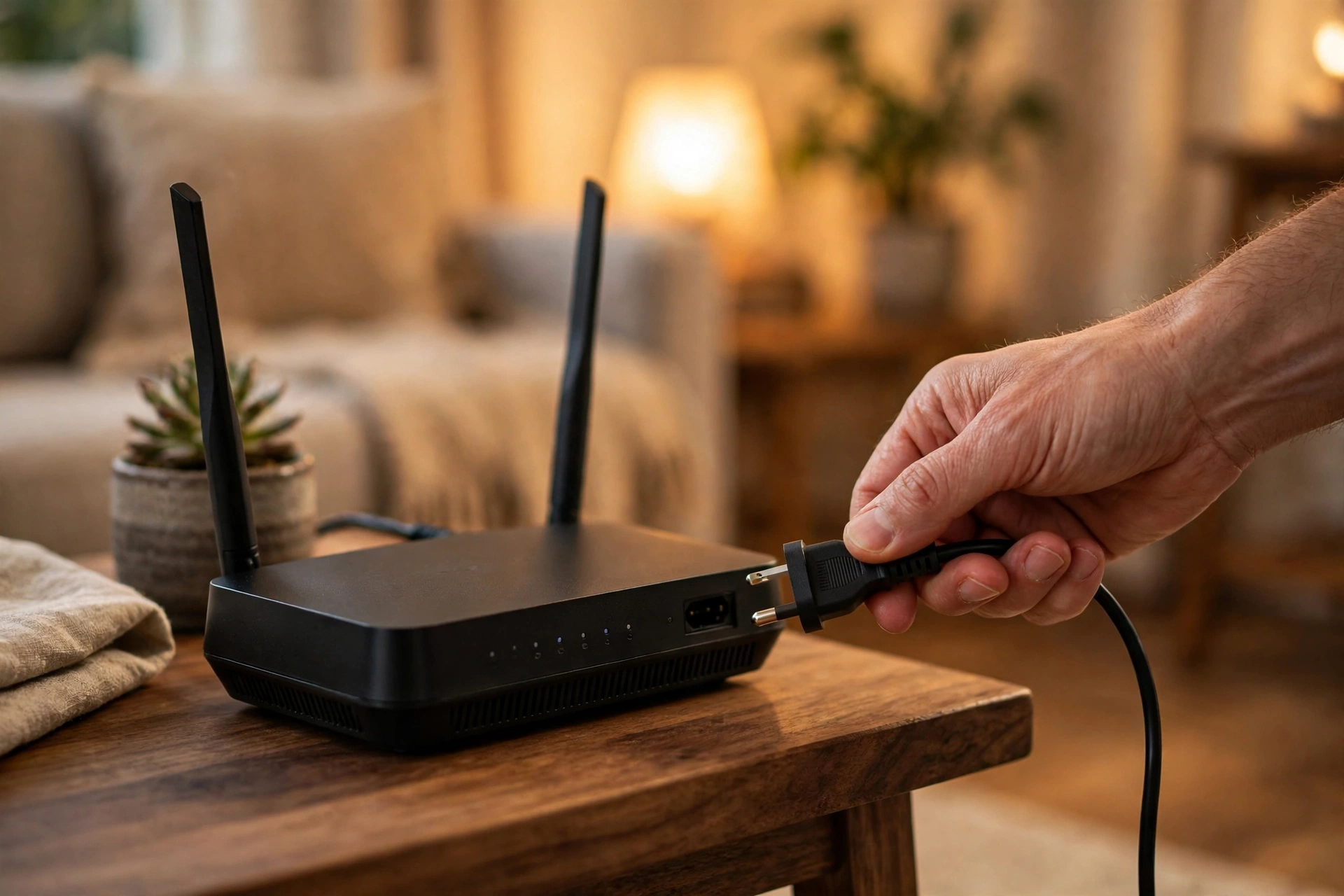
A proper restart is the single most effective Wi-Fi fix, and the order matters. Unplug both the modem and the router (or the single combined box, if that is what you have), and wait a full 30 seconds with the power disconnected. Plug the modem back in first and wait until its lights stabilise, then plug in the router and give it two to three minutes to fully start. Only then restart the device that was having the problem.
A quick five-second unplug is often not enough, because the equipment needs time to fully discharge and renegotiate the connection with your provider. Simply pressing a power button usually puts the box into standby instead of clearing its memory, so unplugging is the reliable way. While you wait, check the cables: the cable entering the router should be firmly seated at both ends, and a loose fibre or coaxial connection is a common cause of a connection that works one day and fails the next.
If the internet returns after this restart, the fault was temporary and no further steps are needed. If it returns and then fails again within a day or two, keep reading: a recurring failure usually means an overheating router, outdated firmware, or a line problem, and the later sections cover each of those.
Wi-Fi Not Working on Your TV but Working on Other Devices

This is the most common version of the problem, and it has its own causes. A TV usually sits further from the router than a phone does, often behind a wall or inside a cabinet, and its Wi-Fi antenna is weaker than a laptop’s. So the first step is to restart both the TV and the router, then check whether the TV is simply too far from the signal: move the router closer if you can, or move the TV’s streaming apps to a device with a stronger antenna.
Next, try the other band. If the TV is connected to 5 GHz, switch it to 2.4 GHz, which travels through walls far better; if it is on 2.4 GHz in a crowded apartment building, try 5 GHz. Then check the TV’s software: open the TV’s settings and install any pending firmware update, because manufacturers regularly fix Wi-Fi bugs in updates that owners never install. Finally, in the TV’s network settings, choose the option to reset the network settings and connect to the network again from scratch, typing the password carefully.
If none of that works, an Ethernet cable is the honest answer for a main TV. A wired connection is faster and far more stable than Wi-Fi for streaming, and it removes the TV’s weak antenna from the equation entirely. If running a cable is not practical, a powerline adapter or a mesh Wi-Fi
point placed near the TV is the next best option. Our Portuguese edition of Tech On Dicas has a full guide to making Wi-Fi faster at home for Portuguese readers. Once the TV is connected again, see how to mirror your phone to a TV for the Android, iPhone, Fire TV, Roku and HDMI options.
Wi-Fi Keeps Disconnecting

A connection that drops every few minutes almost always comes down to interference or an overloaded channel. In an apartment building, dozens of neighbouring networks share the same few channels, and your router ends up shouting over all of them. The fix is to change the channel: in the router’s administration page or app, set the 2.4 GHz network to channel 1, 6 or 11, which are the only three channels that do not overlap with each other, and pick whichever of the three has the fewest neighbours on it. A free Wi-Fi analyser app on your phone shows this in seconds.
Microwaves, baby monitors and some cordless phones also use the 2.4 GHz band, so a connection that drops every evening at dinner time may simply be the microwave. Moving the router away from the kitchen, or switching the affected device to 5 GHz, solves that. On the device itself, choose “Forget this network” and reconnect from scratch, because a damaged saved network can cause repeated drops even when the signal is strong. And if the router feels hot to the touch, move it to an open spot with airflow: an overheating router drops connections long before it fails completely.
If drops continue after all of this, update the router’s firmware from its administration page or the manufacturer’s app. Firmware updates fix exactly this class of bug, and routers that have not been updated in years are a common cause of unstable Wi-Fi.
Wi-Fi Is Connected but Nothing Loads
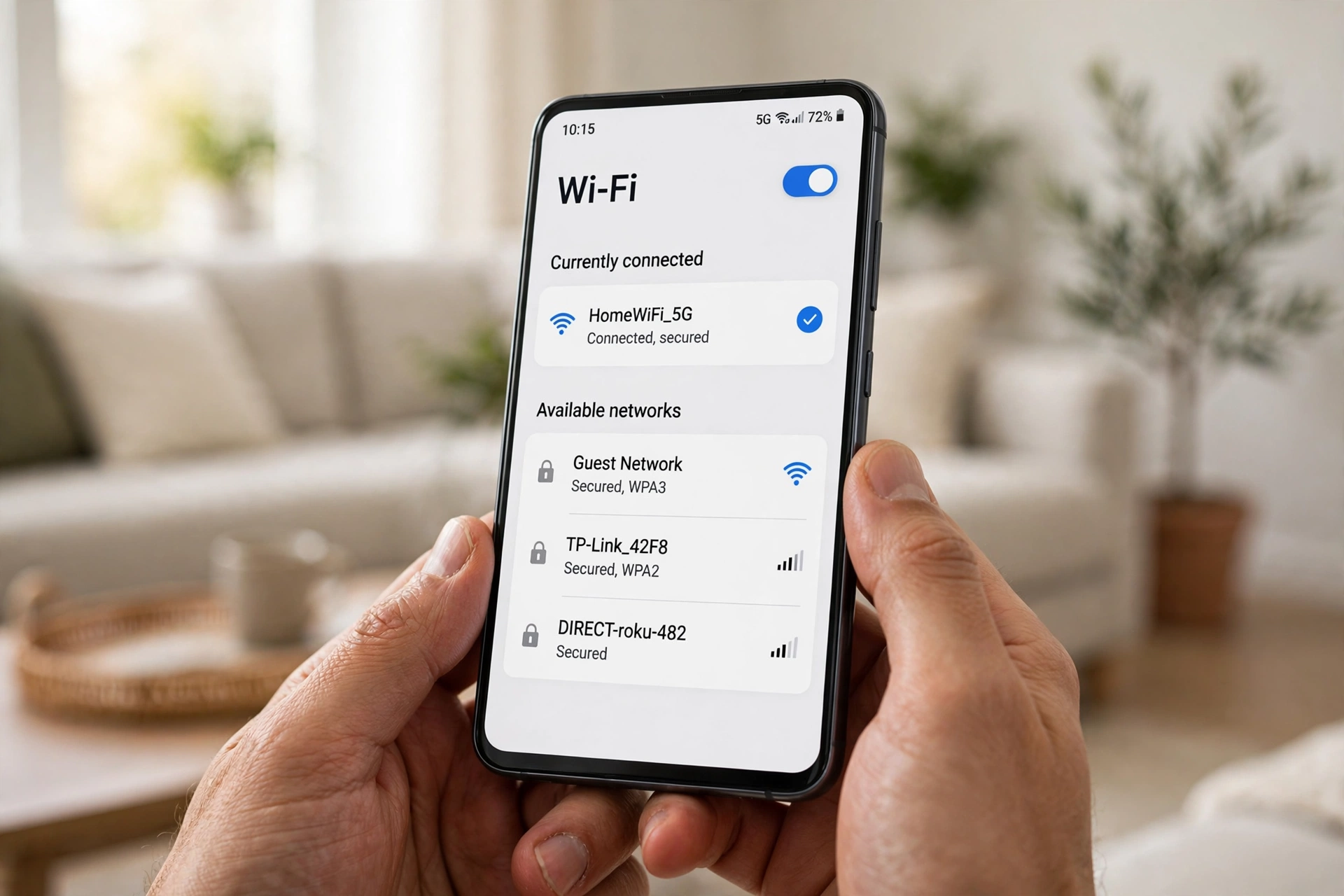
This is a narrower problem with its own guide. If your device shows that it is connected to Wi-Fi, with full signal bars, but no website or app will load, the connection between your device and the router is fine, and the fault is in the router’s link to the internet or in your device’s network configuration, most often its DNS settings. The quick test is to open http://1.1.1.1 in a browser: if that page opens but normal websites do not, it is a DNS problem, and switching to a public DNS such as Cloudflare (1.1.1.1) or Google (8.8.8.8) usually fixes it immediately.
For the full step-by-step version of this case, including the correct restart order, forgetting and reconnecting the network, and resetting network settings on Android and iPhone, see our guide to Wi-Fi connected but no internet. Do not repeat all of those steps here: if your Wi-Fi will not connect at all, or drops constantly, the sections above are the ones that apply to you.
Slow Wi-Fi With Full Signal Bars
Full signal bars measure how strong the radio signal is, not how fast your internet is, so strong bars with slow speeds are completely normal. The speed you actually get depends on the channel, the number of devices sharing the connection, and the speed your provider delivers. Start by running a speed test next to the router, then again in the room where the problem happens. If the speed is good near the router and bad in the far room, it is a coverage problem, not a provider problem, and moving the router to a more central, open spot is the fix.
If the speed is slow everywhere, switch to a less crowded channel as described above, and check whether one device is hogging the connection: cloud backups, game downloads and video uploads in the background can quietly eat the whole connection. A slow DNS from your provider can also make every page feel slow to start, even when downloads are fast, so trying Cloudflare DNS (1.1.1.1) or Google DNS (8.8.8.8) is worth ten minutes of your time. Outdated router firmware and a router that is many years old are the last suspects: Wi-Fi standards move on, and an old router simply cannot deliver modern speeds.
2.4 GHz vs 5 GHz: Which One to Use
Most modern routers broadcast two networks, and choosing the wrong one is a common cause of Wi-Fi that seems not to work. The 5 GHz band is faster, but its signal is weaker through walls and fades quickly with distance. The 2.4 GHz band is slower, but it reaches further and passes through walls and floors far better. Neither is better in general: the right choice depends on where the device sits.
| Situation | Use this band | Why |
|---|---|---|
| Same room as the router, streaming or gaming | 5 GHz | Fastest speeds where the signal is strong |
| Two rooms away, through walls or floors | 2.4 GHz | Reaches further and holds a stable connection |
| Crowded apartment building | 5 GHz if close, otherwise 2.4 GHz on channel 1, 6 or 11 | 5 GHz has more channels and less neighbour interference |
| Smart home devices, printers, older gadgets | 2.4 GHz | Many only support 2.4 GHz at all |
If your router offers band steering, which presents a single network name and moves each device to the better band automatically, leave it on: it makes the right choice more often than most people do by hand. And if you are unsure which band a device is on, the phone’s Wi-Fi settings usually show the frequency next to the network name.
When It Is the Provider, Not Your Home

If every device in the house is offline, wired and wireless, and a proper restart changed nothing, the fault is probably outside your home: a neighbourhood outage, maintenance work, or a line problem. Check your provider’s app or outage page using mobile data, and ask a neighbour with the same provider whether their connection is down too. If theirs is down as well, it is an outage, and no setting on your router will fix it.
Before you call, check two things that save a long support call. First, make sure a VPN, proxy or private DNS setting on your devices is not silently blocking traffic: disconnect any VPN completely and set private DNS back to automatic, then test again. Second, check that your device’s date and time are set to automatic, because a wrong clock can make secure websites refuse to load, which looks exactly like a broken connection. Google’s own troubleshooting page for Wi-Fi connection problems, Fix Wi-Fi connection problems, covers the same checks for Android phones if you want a second opinion from the manufacturer.
Do this
Test more than one device before changing anything. Restart modem first, then router, then the device. Write down your Wi-Fi password before forgetting the network. Test with an Ethernet cable when you can: it separates a Wi-Fi problem from an internet problem in seconds.
Avoid this
Do not press the router’s recessed Reset button unless your provider asks: it wipes your network name and password. Do not install “Wi-Fi booster” apps; they cannot repair a broken connection. Do not factory-reset your phone for a Wi-Fi problem until you have tried forgetting the network and changing DNS.
Conclusion
Wi-Fi not working is rarely one problem. Find out first whether one device or every device is affected, and whether a wired connection works: that answer tells you if the fault is in a device, in the router’s Wi-Fi, or at your provider. Restart in the right order, switch bands or channels when the signal is crowded, and use a cable for a TV that keeps struggling. If your Wi-Fi connects but nothing loads, the connected-but-no-internet guide linked above is the right next step, and if your phone is also losing charge while you troubleshoot, our guide on iPhone battery draining fast covers the fixes that actually help. And the next time you catch yourself asking why is my wifi not working, start with that same test, one device or every device, wired or wireless, before you change a single setting.
Frequently Asked Questions
Why is my Wi-Fi not working all of a sudden?
Most sudden failures are temporary router faults, a provider outage, or a damaged saved network on one device. Restart the modem and router in the right order, test a second device, and check your provider’s outage page with mobile data. If only one device fails, forget the network and reconnect it.
Why does Wi-Fi work on my phone but not my TV?
TVs usually sit further from the router and have weaker Wi-Fi antennas than phones. Restart the TV and the router, try the 2.4 GHz band for better range through walls, update the TV’s firmware, and reset the TV’s network settings. An Ethernet cable is the most reliable fix for a main TV.
Why does my Wi-Fi keep disconnecting?
Repeated drops are usually channel congestion from neighbouring networks, interference from microwaves or baby monitors on 2.4 GHz, or an overheating router. Switch the 2.4 GHz network to channel 1, 6 or 11, move the router to an open spot with airflow, and update its firmware.
Wi-Fi is connected but no internet: what do I do?
That is a different case from Wi-Fi not connecting at all. Test http://1.1.1.1 in a browser: if it opens but websites do not, it is a DNS problem, so switch to Cloudflare (1.1.1.1) or Google (8.8.8.8) DNS. For the full steps, see our guide to Wi-Fi connected but no internet.
Should I use 2.4 GHz or 5 GHz?
Use 5 GHz in the same room as the router for the fastest speeds, and 2.4 GHz further away or through walls, where it holds a more stable connection. Smart home devices and printers usually only support 2.4 GHz. If your router offers band steering, leave it on and let it choose.
How often should I restart my router?
A healthy router does not need a scheduled restart. Restart it when you notice problems, and investigate the cause if you need to restart it more than once a week: that usually means overheating, outdated firmware, or a line problem your provider should check.
Can a VPN stop my Wi-Fi working?
Yes. A VPN app, a manual proxy or a misconfigured private DNS can block all traffic while Wi-Fi itself stays connected. Disconnect the VPN completely, set private DNS back to automatic, and test again before changing anything on the router.
When should I call my internet provider?
Call when every device is offline on Wi-Fi and Ethernet, a proper restart changed nothing, and a neighbour on the same provider is also down, or the provider’s outage page confirms a problem. Tell support what you already tried: the restart order, the Ethernet test, and that all devices are affected.